The clock in your 2017 Honda CR-V doesn’t reset itself after Daylight Saving Time. It doesn’t check your phone. And if your trim has the touchscreen system, there’s a hidden auto-sync toggle that will silently undo any manual change you try to make.
Before you start pressing buttons at random, it helps to know which system your CR-V actually has — because the steps are different depending on your trim. This guide covers both, from start to finish.
Which System Does Your 2017 CR-V Have?
The 2017 Honda CR-V came in four trims: LX, EX, EX-L, and Touring. The trim you have determines how your clock works.
- LX and some base EX models use a 5-inch color LCD screen controlled by physical knobs and buttons.
- EX, EX-L, and Touring models (and most EX variants) use the 7-inch Display Audio touchscreen, which may also include Honda’s Navigation system.
Check your dashboard. If you see a touchscreen you tap with your finger, you’re on the Display Audio system. If your screen only responds to the knobs and buttons below it, you’re on the non-touchscreen setup.
How to Set the Clock on 2017 Honda CR-V — Non-Touchscreen (LX / Base EX)
This method uses the MENU/CLOCK button and the LIST PUSH SELECT (LPS) knob — the larger rotary dial in the center of your audio panel.
Before you start: Turn the ignition to ON or Accessory mode. The screen needs to be active, but you don’t have to start the engine.
Step-by-Step Instructions
Step 1 — Press and hold the MENU/CLOCK button. Hold it for two to three seconds. The clock display will start flashing, or a “Clock Adjustment” option will appear on screen.
Step 2 — Navigate to “Adjust Clock.” Use the LPS knob to scroll to the Adjust Clock option, then press the knob inward to select it.
Step 3 — Set the hour. Rotate the LPS knob to change the hour value. When the correct hour is shown, press the knob inward to confirm and move to the minutes.
Step 4 — Set the minutes. Rotate the LPS knob to adjust the minutes.
Step 5 — Confirm the new time. Press the LPS knob inward once more to highlight the “Set” or “OK” option, then press again to finalize. The flashing will stop and your new time will display.
That’s the entire process. Physical buttons, no hidden toggles — straightforward from start to finish.
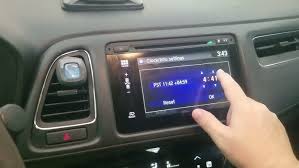
How to Set the Clock on 2017 Honda CR-V — Touchscreen Models (EX, EX-L, Touring)
The touchscreen process has one extra step that catches most people off guard: you must disable the automatic time sync before your manual adjustment will stick. Skip that step and the system reverts on its own, often right back to the wrong time.
Before you start: Put the vehicle in Park (P). Honda’s infotainment system locks certain setting menus while the vehicle is in motion.
Step-by-Step Instructions
Step 1 — Press the Home button. Tap or press the Home button on the bezel beside the screen to return to the main menu.
Step 2 — Open Settings. Select the Settings icon (the gear icon) on the home screen.
Step 3 — Navigate to Clock settings. Go to System → Clock (or System → Date & Time, depending on your software version). Either path leads to the same place.
Step 4 — Turn off Automatic Time. Look for a toggle labeled “Automatic Time,” “Auto Time Zone,” or “GPS Synchronization.” Tap it to switch it OFF.
This is the critical step. If your clock keeps reverting after you set it — especially after a DST change — this toggle is the reason. The system is pulling time data from GPS satellites and overwriting your manual input.
Step 5 — Select Clock Adjustment or Set Time. With automatic sync disabled, tap Clock Adjustment or Set Time. You’ll see the current time with up and down arrows next to each value.
Step 6 — Adjust the hour and minutes. Tap the arrows to increase or decrease the hour, then repeat for the minutes. While you’re here, you can also switch between 12-hour and 24-hour format if needed.
Step 7 — Save. Tap OK or Save. Your new time is now set, and it will stay set.
Helpful Tips and Fixes
The Quick Tap Shortcut
On most 2017 CR-V touchscreen models, tapping the time display in the upper-right corner of the screen is a shortcut directly to the Date & Time menu. It bypasses the Settings navigation entirely.
Daylight Saving Time Toggle
The Clock menu on touchscreen models may include a separate Daylight Saving Time switch. If your time is consistently one hour off, check that this toggle matches your region’s current DST status. It can be the culprit even when everything else looks correct.
Navigation Models and the Auto Time Zone Loop
On the Touring and some EX-L trims with Navigation, the system is designed to pull accurate time from GPS. If your manual setting keeps getting overwritten, go back into Clock settings and check the Time Zone selection. The system may be set to the right time for the wrong zone. Toggling the automatic time zone from ON to OFF and back to ON can force a fresh sync.
Rebooting a Frozen Infotainment Screen
If the screen becomes unresponsive during setup, hold the Audio Power/Volume knob (the large rotary knob on the audio panel) for five to ten seconds. The system will prompt you to reboot. After restart, try the clock steps again.
Wrapping Up
Setting the clock on your 2017 Honda CR-V takes less than two minutes once you know which system you’re working with. The LX and non-touchscreen EX models rely on the MENU/CLOCK button and LPS knob — simple, physical, and reliable. The touchscreen models on the EX, EX-L, and Touring trims require one additional step: turning off the automatic time sync before making any manual change.
The most common reason a CR-V clock keeps resetting is that auto-sync toggle being left on. Disable it first, set the time, save — and you’re done.
Frequently Asked Questions
Why does my 2017 Honda CR-V clock keep resetting? This almost always happens on touchscreen models because the Automatic Time or GPS Synchronization toggle is still enabled. Go to Settings → System → Clock, turn that option off, then set the time manually.
How do I set the clock on a 2017 CR-V LX? Press and hold the MENU/CLOCK button until the clock flashes, then use the LPS knob to adjust the hour and minutes. Press the knob inward to confirm each value and finalize.
Is there a shortcut to access clock settings on the touchscreen? Yes. On most 2017 CR-V touchscreen models, tapping the time displayed in the upper-right corner of the screen takes you directly to the Date & Time settings, skipping the full Settings menu path.
My clock is one hour off — what’s wrong? Check the Daylight Saving Time toggle in your Clock settings. If that’s correctly set, also verify your Time Zone selection. On Navigation-equipped models, the system may have synced to the right time in the wrong region.
Do I need to go to the dealership to change the clock? No. Setting the clock on every 2017 CR-V trim is a simple, owner-accessible process that takes under two minutes using the steps above.
Can I use a 24-hour clock format on the 2017 CR-V touchscreen? Yes. When adjusting the time on the Display Audio system, you’ll find a 12/24-hour format option in the same Clock Adjustment menu.